---
title: Setting up Webhooks in Tekmetric
description: Take advantage of real-time appointment and RO updates from Tekmetric, to give customers the best possible experience!
---
[Skip to content](https://support.shopgenie.io/support/setting-up-webhooks-in-tekmetric#main-content)
English
Show submenu for translations
![SG\_Mark\_White-Oct-09-2023-04-04-04-8207-PM.png\]](https://support.shopgenie.io/hs-fs/hubfs/SG_Mark_White-Oct-09-2023-04-04-04-8207-PM.png?height=40&name=SG_Mark_White-Oct-09-2023-04-04-04-8207-PM.png)
Open main navigation
Close main navigation
- English
Show submenu for translations
- Go to shopgenie.io
Go to shopgenie.io
Shopgenie Support Articles
- There are no suggestions because the search field is empty.
1. [Shopgenie Support](https://support.shopgenie.io/support?hsLang=en)
2. [Integrations](https://support.shopgenie.io/support/integrations?hsLang=en)
# Setting up Webhooks in Tekmetric
## Take advantage of real-time appointment and RO updates from Tekmetric, to give customers the best possible experience!
[Webhooks](https://www.tekmetric.com/integrations/custom-webhooks) are offered by Tekmetric to send real-time updates to other systems (like Shopgenie). In this article, we'll show you how to set them up, and explain some of the benefits.
### Why use webhooks?
- Send real-time appointment confirmations, EVEN for appointments not booked through Shopgenie (i.e. booked in Tekmetric)
- Make sure appointments get deleted off of your Shopgenie calendar and appointment reminders get canceled in real-time, if customers cancel or reschedule their appointment.
### What if I don't use webhooks?
If you don't use webhooks, your account data will sync once per hour.
### How to set up Webhooks in Tekmetric
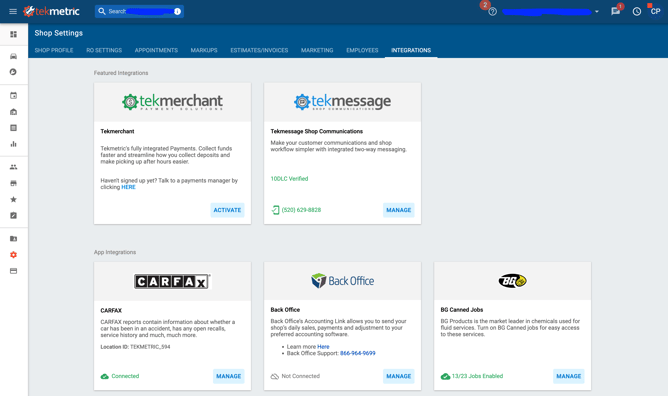
**1.** (Note: You must be logged in as an admin) In Tekmetric, first navigate to Settings-\>Integrations:
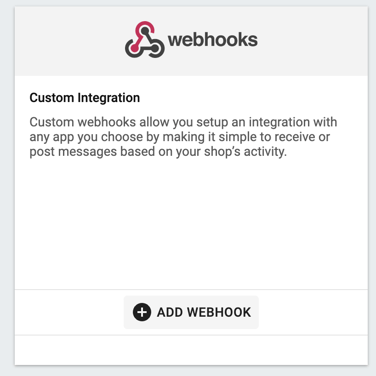
**2.** Next, scroll down until you see "Webhooks", and click "Add Webhook":
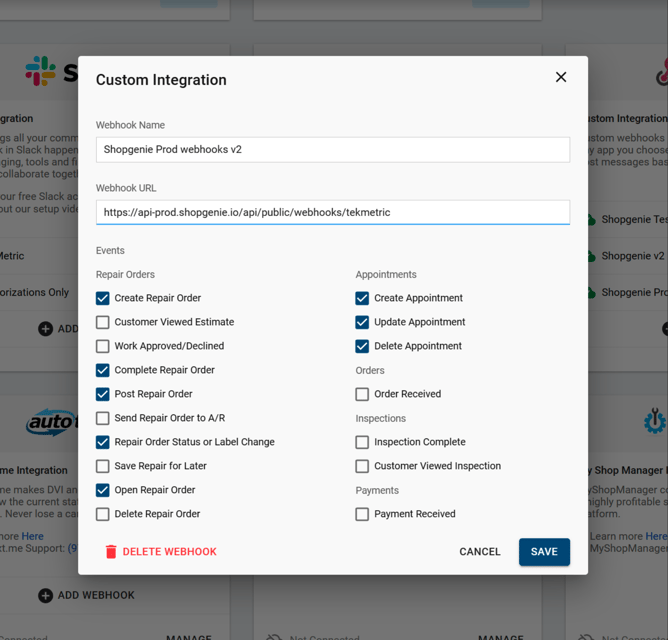
**3.** Next, please add the following details for the Webhook:
**Webhook name:** Shopgenie Webhooks
**Webhook URL:** https://api-prod.shopgenie.io/api/public/webhooks/tekmetric
**Events:** See below for what events to choose:
**4.** Once you've added the webhook, you should begin seeing real-time updates for appointments and ROs in Shopgenie!
- [Getting Started](https://support.shopgenie.io/support/getting-started?hsLang=en)
- [General](https://support.shopgenie.io/support/general?hsLang=en#main-content)
- [Tekmetric Marketing](https://support.shopgenie.io/support/general?hsLang=en#tekmetric-marketing)
- [FAQs](https://support.shopgenie.io/support/faqs?hsLang=en)
- [Settings](https://support.shopgenie.io/support/settings?hsLang=en)
- [Troubleshooting](https://support.shopgenie.io/support/troubleshooting?hsLang=en)
- [Campaigns](https://support.shopgenie.io/support/campaigns?hsLang=en#main-content)
- [FAQ](https://support.shopgenie.io/support/campaigns?hsLang=en#faq)
- [Integrations](https://support.shopgenie.io/support/integrations?hsLang=en)
- [Reviews](https://support.shopgenie.io/support/reviews?hsLang=en)
- [Shopgenie Website](https://support.shopgenie.io/support/shopgenie-website?hsLang=en)
- [Online Booking](https://support.shopgenie.io/support/online-booking?hsLang=en)
- [Calendar](https://support.shopgenie.io/support/calendar?hsLang=en)
- [Phones](https://support.shopgenie.io/support/phones?hsLang=en)
[](http://shopgenie.io)
[mailto:email@email.com](mailto:email@email.com)
Copyright © 2026, Tekmetric